
An infinite grid of terminals.
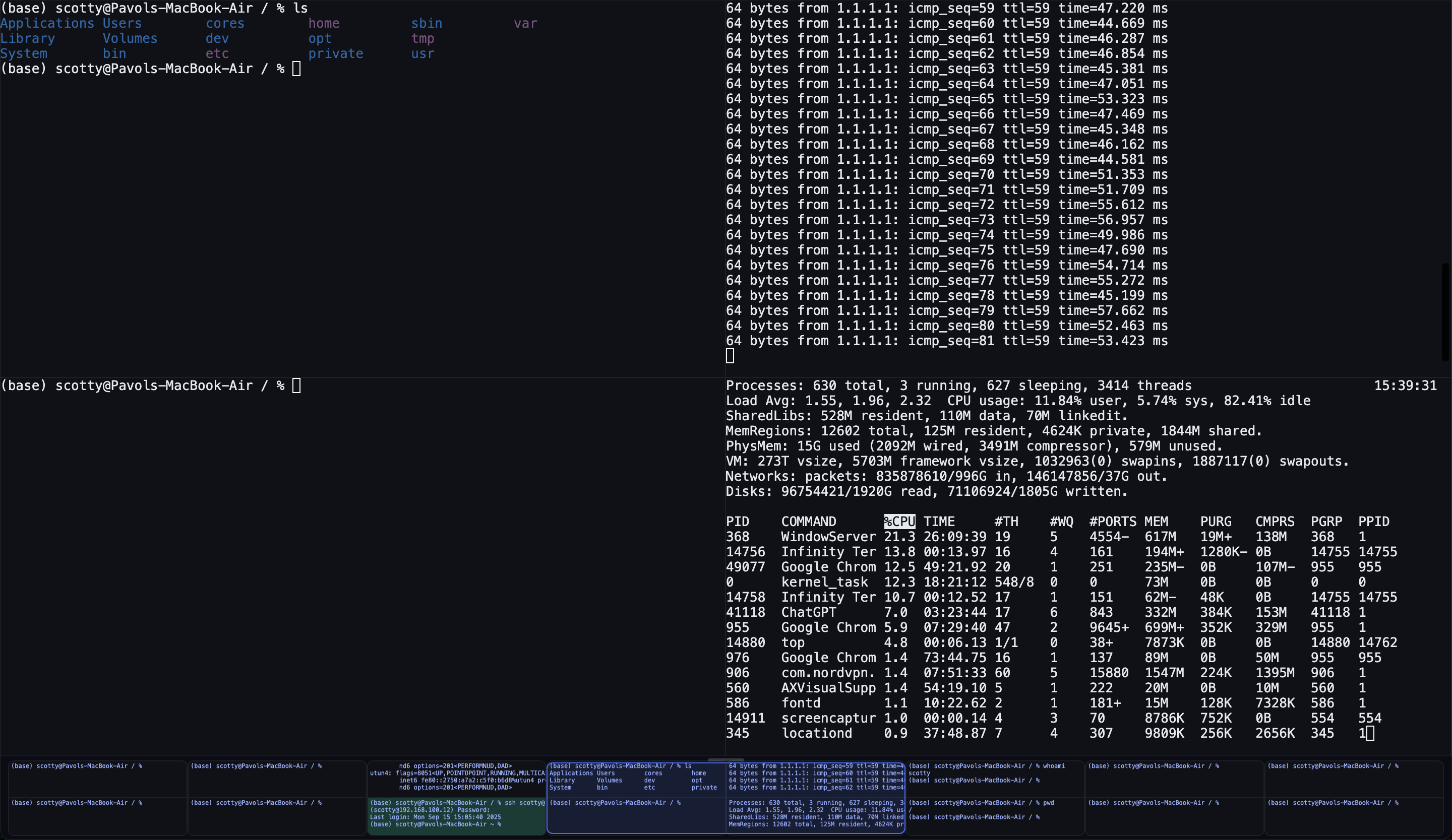
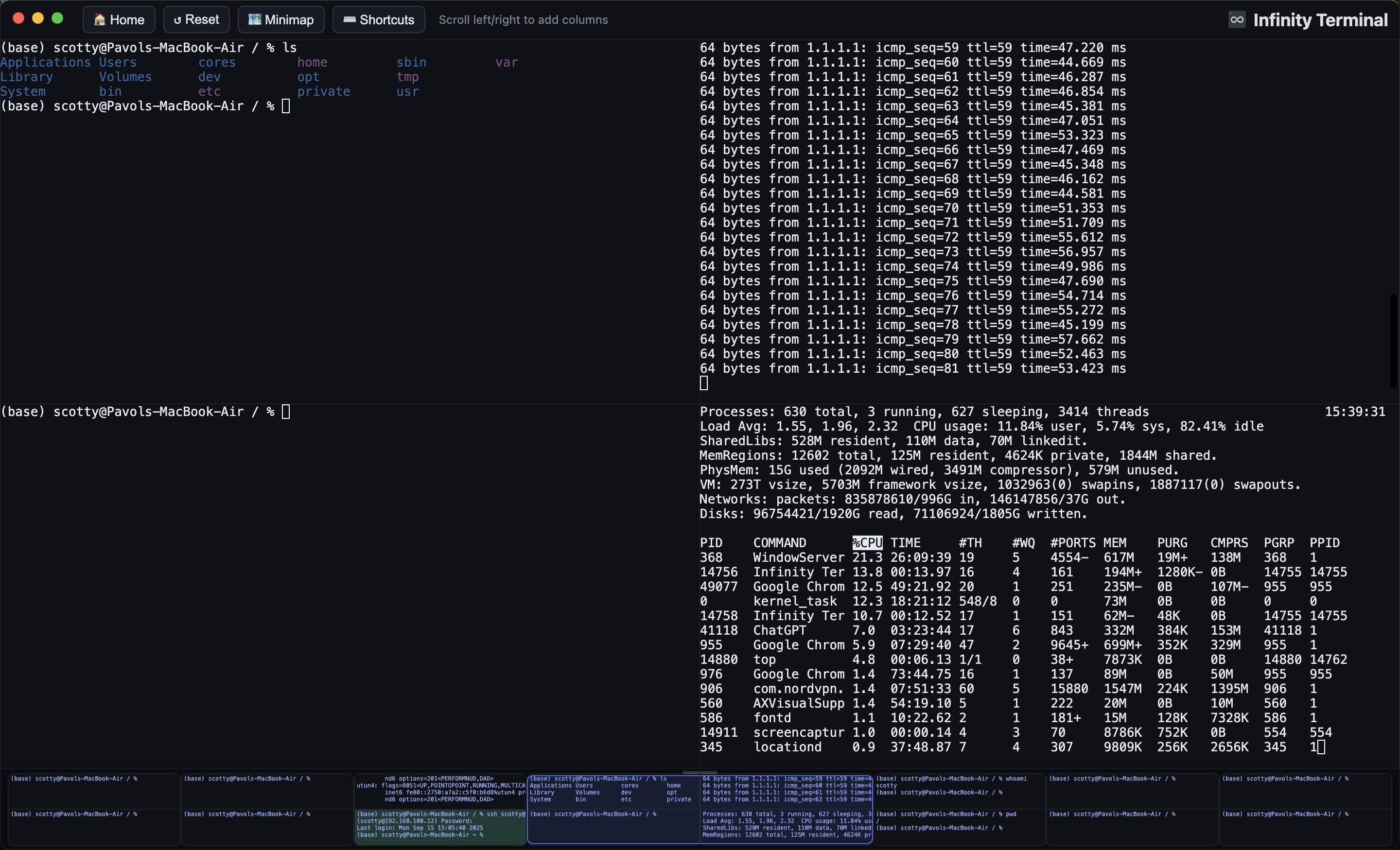
Stop juggling tabs and windows. Infinity Terminal arranges every shell you need on one scrollable canvas — open dozens of panes, name them, color-tag them by environment, and find them at a glance.
Signed and notarized by Apple — no Gatekeeper warnings. Requires macOS 14+.
Infinity Terminal is free; if it helps your workflow you can support development here.
Why Infinity Terminal?
Tabs and tiling stop working once you have more than a handful of shells open. Infinity Terminal flips the model — instead of cramming everything into one viewport, it gives you an unlimited canvas you scroll through.
Tabs don't scale
By the time you have 10 terminals open, every tab title is truncated to three letters. You spend more time searching for the right tab than working in it.
Tiling is rigid
Split panes look great with two or four shells. Try fitting a ninth one and the layout collapses — you end up with windows on top of windows.
Infinity Terminal is a canvas
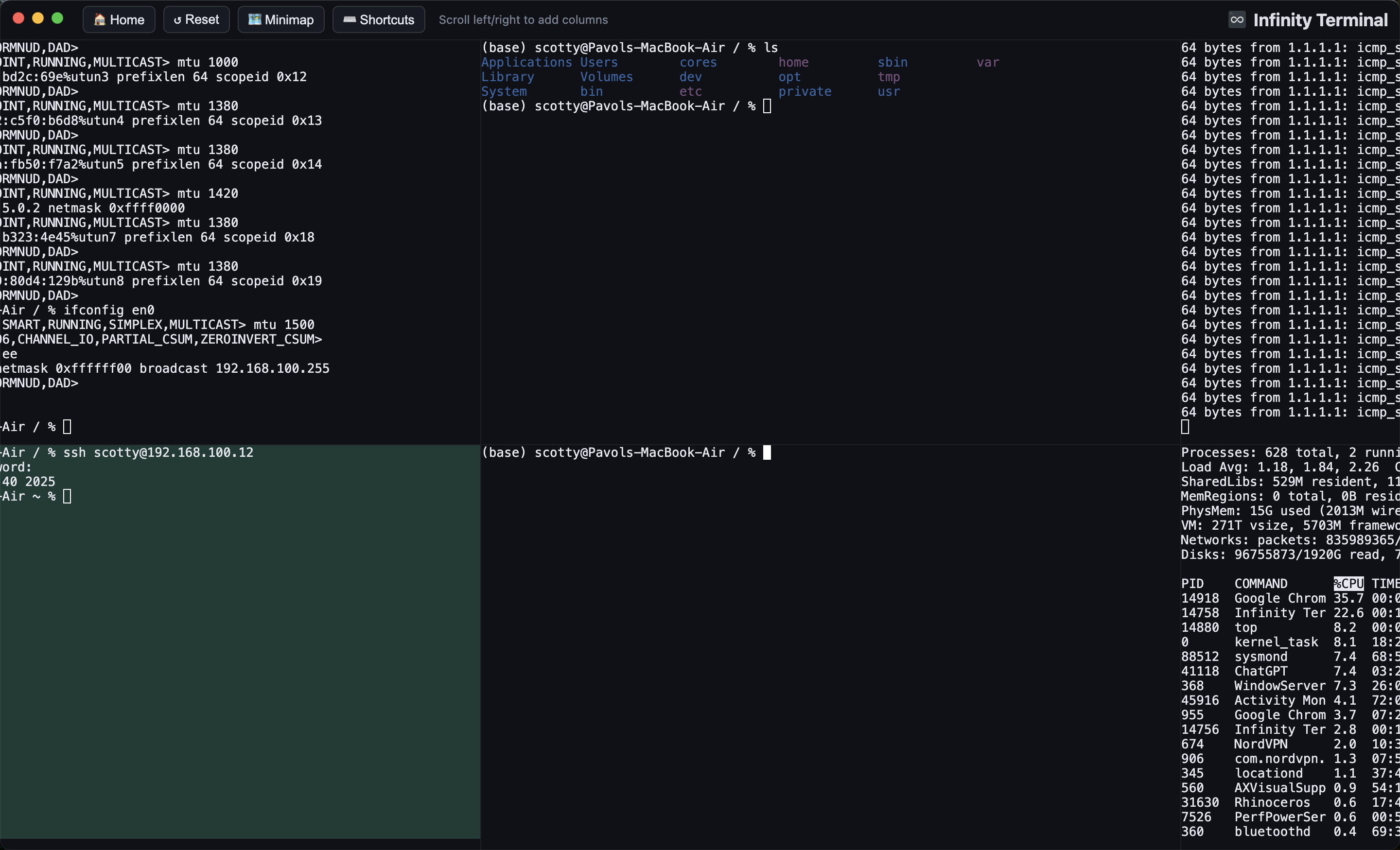
Open as many shells as you need, arranged in a 2-row grid that scrolls left/right (or top/bottom). Every pane stays full-size and reachable with a flick of the trackpad.
Built for…
Watching multiple servers at once
SSH into six production hosts, give each pane a name and a color, and keep all of them on screen. Scroll over to the staging cluster when you need it.
Comparing logs side by side
Tail logs from two services in adjacent panes without the noise of overlapping output. Add a third pane for the database, a fourth for the load balancer — the grid just grows.
Keeping environments separate
Tint your prod shells red, dev green, staging amber. Misfires drop dramatically when "which terminal am I in?" is answered by a glance, not a guess.
Long-running tasks in parallel
vim, npm run dev, claude, tail -f, an SSH session you want to leave open — keep them all running side by side without losing any to a closed tab.
Features
A short list of things that pull their weight every day.
Infinite Canvas
Add columns to the left or right — there is no limit. Each column holds one or two panes, full-size, all reachable with a scroll.
Expand a Pane new
Need room? Click ⛶ to expand a pane to its full column height — the other pane tucks away behind a thin strip and keeps running. Click the strip or ❐ to bring the even split back, whenever you like.
Session Restore
Layout, working directories, pane names, and colors all persist across quit, reboot, and app updates. Reopen the app and pick up exactly where you left off.
Color-Tag Your Panes
Pick a hue from the hover controls — the pane background tints subtly so you can spot prod, dev, or staging at a glance without reading hostnames.
SSH-Aware Colors
Detects successful SSH logins and assigns a consistent dark color per host or IP automatically — so the same server always looks the same, wherever it lands in the grid.
Pane Names
Rename any pane to something human ("db-staging", "deploy logs"). The label pins to the top-left of the pane and survives restarts.
Minimap
An optional bird's-eye strip that mirrors the whole grid. Drag the viewport indicator to jump anywhere — handy once your grid stretches past the visible area.
Rearrange Without Losing State
Swap panes left/right (⇄) or top/bottom (⇅) on demand. The PTY processes keep running through the move — your vim session, your dev server, your long-running build all stay alive.
Native & Fast
Built with Swift and SwiftTerm. Renders through Core Text and Metal. ~30 MB memory, sub-second startup, near-zero idle CPU — even with dozens of panes open.
Install
Download DMG
- Download
InfinityTerminal.dmgfrom the button above or GitHub Releases. - Open the DMG and drag Infinity Terminal to Applications.
- Launch from Applications.
Signed and notarized by Apple. No Gatekeeper warnings.
Build from Source
git clone https://github.com/bujna94/infinityTerminal.gitcd infinityTerminalswift build -c release.build/release/InfinityTerminal
Requires Xcode Command Line Tools and macOS 14+.
How to use it
Designed so a developer can pick it up in under a minute. The basics:
Keyboard shortcuts
- ⌘⇧← / ⌘⇧→ — add a column to the left or right
- ⌥⌘← / ⌥⌘→ — step one column over
- ⌘⇧H — jump back to home (your first column)
- ⌘⇧M — toggle the minimap
- ⌘⇧R — reset the workspace
- ⌘/ — show the full shortcuts panel
Mouse & trackpad
- Two-finger swipe left/right to move through columns.
- Hover any pane for the rename (✎), color, swap (⇄ / ⇅), expand (⛶), and close (✕) controls.
- Click ⛶ on a pane to expand it to the full column height; click the restore strip (or ❐) to bring the split back.
Screenshots
Support Infinity Terminal
Infinity Terminal stays free; if it saves you time, you can fuel further development here:
Downloads
v1.0.14 — Now native. Signed and notarized by Apple.
What’s New in v1.0.30
- Expand a terminal to fill its column. Each column holds two stacked panes; click the expand button (⛶) in a pane's hover controls to make it take the full column height. The other pane tucks away behind a thin strip and keeps running — click the strip (or the restore button ❐) to bring the even split back. Expand or restore whenever you like.
- Removed the experimental vertical scrolling mode. The grid now always scrolls horizontally, which simplifies the layout and removes the orientation toggle from the toolbar and View menu.